Wednesday, June 7, 2023

How to Configure Application Control on FortiGate

✓ Why Application Control?
User trends is moving to application (user traffic is going to application).
Examples: WhatsApp, Facebook, YouTube.
The application has a lot of features that is need to control by allowing one and
blocking others.
Example: Facebook has {chat, videos, games, ...}.

✓ How it is work?
FortiGate can recognize network traffic generated by a large number of applications.
Application control sensors (Profile) specify what action to take with the filtered
applications traffic.

Application control uses IPS protocol decoders that can analyze network traffic to
detect application traffic, even if the traffic uses non-standard ports or protocols.

Application control doesn’t operate using built-in protocol states. It matches patterns
in the entire byte stream of the packet, and then looks for patterns in Application
Signature Database.

Because Application control uses the IPS engine, which uses flow-based inspection,
Application Control inspection is always flow-based.

Application Signatures, IPS Engines and IPS protocol decoders are upgraded
automatically through the FortiGuard Distribution Network (FDN) if existing decoders
are modified or new decoders added.

Application control requires a subscription to FortiGuard application control.
The database for application control signatures is separate from the intrusion
prevention system (IPS) database.


✓ Application Control Hierarchical Structure.
Application control signature database is organized in a hierarchical structure.
This allows you to inspect traffic in a more granular fashion.
You can block the Facebook app while allowing users to collaborate using Facebook
Chat.
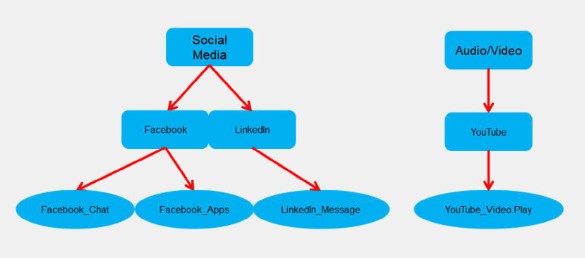
The parent signature takes precedence over the child signature.

✓ Application Control profiles consist of three different types of filters.
1- Category:
Groups applications based on similarity.
For example, all applications capable of providing remote access are grouped in
the Remote Access category.
You can view the signatures of all apps in a category, and you can apply an
action to a category as a whole.

2- Application Overrides:
Provides flexibility to control specific signatures and applications.

3- Filter Override:
Useful when the predefined categories do not meet your requirements and you
want to block all applications based on conditions not available in the category.
You can configure and take action on the classification of applications based on
their behavior, popularity, protocol, risk, vendor, or technology used by the
application.

✓ Configuring Additional Options
1- Block applications detected on non-default ports (Port enforcement check).
For monitor and allow actions, application will be blocked if detected on non-
default ports (as defined in FG Application signature).

2- Allow and Log DNS traffic
Clients do many DNS requests just for one application to load, logging all these DNS
requests across hundreds or thousands of clients will add more load to the FortiGate
as it will use a lot of system resources.
It should be enabled during an investigation Only.

3- Replace messages for HTTP-based applications
This setting allows you to replace blocked content from HTTP/HTTPS applications
with default/custom message.
For non-HTTP/HTTPS applications, FortiGate only drops packets or resets TCP
connections.
This option allows you to provide an explanation for blocked content for the users.
4- Network Protocol enforcement:
Protocol enforcement is added to application control profile to configure network
services (such as FTP, HTTP, and HTTPS) on known ports (such as 21, 80, and 443)
while blocking those services on other ports.
This feature can be used in the following scenarios:
• When one protocol dissector/decoder confirms the service of network traffic,
protocol enforcement can check whether the confirmed service is allowlisted
under the server port.
If it is not Allowlisted, the traffic is considered a violation and IPS can take the
action specified in the configuration (block or monitor it).

• When there is no confirmed service for the network traffic.
If IPS dissectors/decoder exclude all services enforced under their server ports, it
will be considered a service violation.

For example, if port 21 is configured for FTP, the IPS profiler cannot determine the
exact service, but determines that it is not FTP. It would be a violation if the port
for non-ftp traffic was 21.

5- Blocking QUIC
QUIC is a protocol from Google that uses UDP instead of standard TCP connections
for web access.
Web filtering does not scan the UDP protocol.
Blocking QUIC forces Google Chrome to use HTTP2/TLS1.2 and harden logs that
QUIC is blocked. The default operation of QUIC is Block.
Blocking QUIC by default in the application control profile is no longer necessary
since HTTP3 over QUIC is fully supported by FortiOS.

✓ Scanning Order
A- The IPS engine using protocol decoder detects the presence of a matching
application signature in the traffic stream.

B- FortiGate then scans packets for matching application control profiles in the
following order:
1- Application & Filter Overrides:
If you have configured any Application Overrides or Filter Overrides, the
Application Control Profile considers them first. It looks for matching overrides.
2- Category:
Finally, the application control profile applies the actions you configure for the
application.

✓ Application Control Actions:
1- Allow:
Allow traffic to pass, continue to next scan, and do not log.

2- Monitor: Allow but Log
Allow traffic to pass, continue to next scan and generate log information at the
same time

3- Block: Drop packets and Log
Discard detected traffic and record logs

4- Quarantine: Block and Log (for a period of time)
Block traffic from the attacker IP until the expiration time is reached (Quarantine
Duration), and generate a log message.

✓ The View Signatures VS View Cloud Signatures

View Signatures:
View application control signatures that are created by Fortinet based on data from
the FortiGuard Labs Threat Research Team.
Applications with cloud behavior are applications that are designed to be used in the
cloud. They are typically designed to be scalable, resilient, and secure.

View Cloud Signatures:
View cloud signatures that are created by Fortinet based on data from the cloud.

This data includes information about popular cloud applications, as well as malicious
traffic that is being used to attack those applications.

This data includes information about popular cloud applications, as well as malicious
traffic that is being used to attack those applications.

Cloud signatures are updated more frequently than FortiGate application control
signatures.
All cloud applications require SSL Inspection set to deep-inspection.

✓ Logging Application Control Events:
* Logging must be enabled on a firewall policy {All or UTM}. (1)
UTM logging: logs all traffic that is inspected by the UTM security Profiles {Antivirus, Web
filtering, Application control, Ips, ......}
All logging: logs all traffic that passes through the firewall.
* Application Control must be applied to a firewall policy to enable application
control event logging. (2)

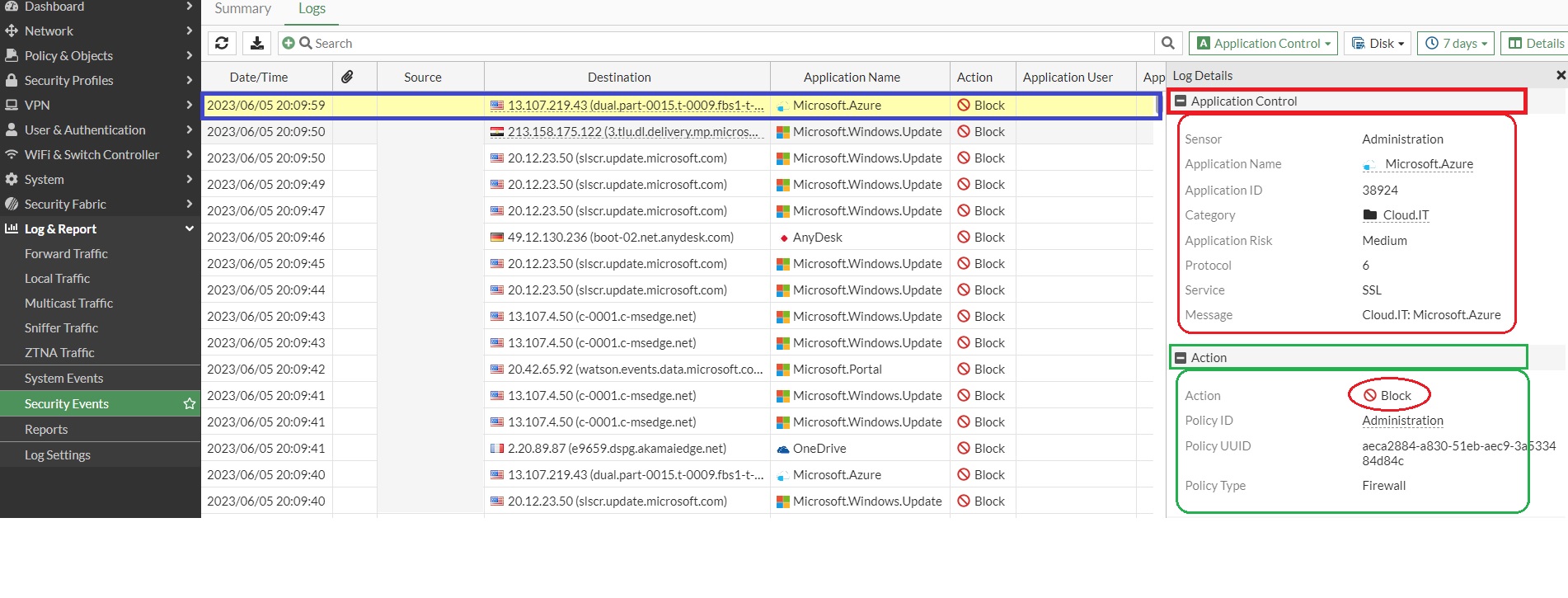
* FortiGate logs all application control events in the Security Events pane of the Logs
& Reports page.
* Forwarded traffic log pane, will give you more details about application control
traffic logs.

* On dashboard menu, FortiView Applications pane, will give detailed information
about each application, such as application name, category, and bandwidth.


✓ Application control best practices
1- Not all traffic requires application control scanning, be as specific as possible when
creating firewall policies, apply application control to only the traffic that required.
• Specify source and destination within the firewall policy as much as possible.
• Do not apply application control to internal-to-internal traffic.
{This will minimize resource usage on FortiGate, and also helps you build more
secure firewall configurations.}

2- For the SSL/SSH detection method, select Deep-Inspection instead of Certificate-
based to ensure content detection for encrypted protocols.

3- Use FortiCloud account to save and view application control event log (free 7 days
log storage), especially for FortiGate devices that doesn’t have an internal disk for
logging.


Saturday, May 27, 2023

How to Configure Web Filtering on FortiGate Firewall

 Why we need Web filtering?

1-    Block access to inappropriate contents (porn sites)
2-    Block access to malicious websites which may cause data loss or data leak.
3-    Block access to Band consuming /bandwidth wasting sites (streaming sites).

What we can filter on (Based on)?
Web filters are applied in the following order:

1-    URL list
2-    FortiGuard Web Filtering Categories.
3-    Web content filtering.
4-    Web script filter
5-    Antivirus scanning

Web filtering Actions:

1-    Allow: Permit access to the website

2-    Monitor: Permit and logs access to the website. 

3-    Warning: Displays a message to the user, allowing him to continue or not.

Warning interval: the time interval when the warning page appears again after the user chooses to continue (allow access time)

4-    Block : Prevent access to the website.
5-    Authenticate: Requires the user to authenticate with the FortiGate in order to allow access to the website.


1-    URL list   "static URL filter".
Mainly it is used to block certain websites and allowing the rest of websites.
The URL list saved on the FortiGate device itself and does not need a connection to FortiGuard Servers, so Static URL filter→ doesn’t need a valid FortiGuard license.

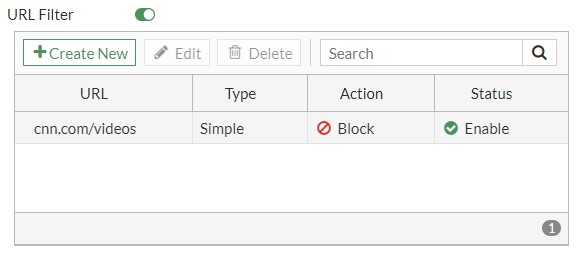
For example: this list blocks only cnn.com/videos and allow the rest of websites.
***To allow certain websites and block the rest of websites.***
Note: the URL filter rules are applied in order from the top. ↓

There are three types of URL that can be defined.

A) Simple: 
URL Filter entry must be in the format of a standard URL.
Also, can include sub-domains and paths.

For example: www.cnn.com
- URL entry: cnn.com  ----->Full Domain
- URL entry: cnn.com/videos ---->Path

Note: To match a URL's path (e.g., 'cnn.com/videos'), SSL Deep Inspection must be configured within the Firewall Policy (assuming the traffic is encrypted HTTPS).

B) Wildcard: A wildcard can be used to include one or more URLs to a simple URL
For example:
- URL: *.fortinet.com (everything before ".fortinet.com" will match this rule, like support.fortinet.com)
- URL: www.fortinet.com/* (everything after "www.fortinet.com/" will match this rule, like www.fortinet.com/contact)

C) Regular Expressions (regex): A wildcard can be used to include one or more URLs to a simple URL.
For example:-
- URL: *.cnn.com →(everything before ".cnn.com" will match this rule, like edition.cnn.com)
- URL: www.cnn.com/* (everything after "www.cnn.com/" will match this rule, like www.cnn.com/videos)

"/i" symbols means: makes the pattern case sensitive.
For example:
"/CNN/i" → will not match with "cnn"
"^" symbols means: at the beginning of the string.
For example:
"^cn" →will match 'cnn.com'

Block invalid URL
Block web sites whose SSL certificate's CN field does not contain a valid domain name.
Example:
When a visited URL that contains a "_", the site will be blocked with "block-invalid-url".
This option also blocks URLs that contains spaces. If there is a space in the URL, it must be written as %20 in the URL path.

As per RFC 952, " A "name" (Net, Host, Gateway, or Domain name) is a text string up to 24 characters drawn from the alphabet (A-Z), digits (0-9), minus sign (-), and period (.). "
Block malicious URLs discovered by FortiSandbox
Block malicious URLs that FortiSandbox finds.
Forti cloud Sandbox free for use.


2. FortiGuard Web Filtering Categories.
1- the URL is sent to the nearest FortiGuard server.
2- The URL category or rating is returned.
3- If the category is set blocked, the FortiGate shows a block replacement message instead of the request page.
4- If the category is not blocked, the request page is sent to the user as normal.

FortiGuard Web Filtering Categories need a connection to FortiGuard Servers to work, So, this will need a valid FortiGuard license

How To look up a URL rating/Category
1- FortiGuard website (https://www.fortiguard.com/webfilter)
2- Security Profiles -> Web Rating Overrides -> Create New -> URL -> Lookup Rating
(Don’t click on ‘ok’ button as this will save the configuration).

Usage quota
Quotas can be set for the Monitor, Warning, or Authenticate actions.
Once the quota is reached, the traffic is blocked and the replacement message page displays.

Quotas allow access for a specified length of time or a specific bandwidth, and are calculated separately for each user. Quotas are reset daily at midnight.

Allow users to override blocked categories
Allow users with valid credentials to override blocked categories with another web profile for a certain time interval.

✓ Select users’ group that can override and the new allowed web profile.
✓ Select IP or ASK and define the access time interval.

✓ Validate user credentials and if requested to define the allowed access time interval.

Web Category override.

Overrides the original FortiGuard category for the URL with either a different FortiGuard category, or a custom local category.
Example: google.com URL, Cat. (General Interest-Business) override with Custom local Cat. (Block URLs).

Note: Web rating is only on host names no URLs or Wildcards are allowed.
(Disable) Action: New Local Category actions
Remove the category from the web filter profile.
Rating Options.

Allow websites when a rating error occurs
If you do not have a FortiGuard license, or you have a connection problem with FortiGuard Servers, but you have enabled FortiGuard Web Filtering Categories services, then you will get a rating error message.

By default, this option is disabled, and if an error rating occurs, the FortiGate will block the website.

Rate URLs by domain and IP Address
By default, this option is disabled and FortiGate only sending domain information to FortiGuard for rating.

If this option enabled, the FortiGate sends both the URL domain name and the TCP/IP packet's IP address (except for private IP addresses) to FortiGuard for the rating.

The FortiGuard server might return a different category of IP address and URL domain. 
If they are different, the FortiGate uses the rating weight of the IP address or domain name to determine the rating result and decision.

Additional Proxy-Based Web Filtering Features 
These advanced filters are only available in proxy-based inspection mode.
1- Search Engines:
Enforce 'Safe Search' on Google, Yahoo!, Bing, Yandex
 By enable safe search mode in search engines to filter search results.

Restrict YouTube Access 
YouTube Restricted Mode is an optional setting that filters out potentially mature videos while leaving a large number of videos still available.

Strict: Strict Mode does not block all videos, but works as a filter to screen out many videos based on an automated system, while leaving some videos still available for viewing.

Moderate: this setting is similar to Strict Mode but makes a much larger collection of videos available.

Log all search keywords 
This setting logs all search phrases.

2- Proxy Options
Restrict Google account usage to specific domains 
block access to Google accounts and services, while allowing access with specific domains in the exception list.

HTTP POST Action
HTTP POST is the command used by the browser when you send information, such as a completed form or a file you are uploading to a web server.

This option is used to restrict users from sending information and files to web servers.
The action options are allow or block. The default is allow.

Remove Java Applets, Remove ActiveX and Remove Cookies
Filter cookies, Java applets, and ActiveX scripts from web traffic. 
If these filters are enabled, websites using Java applets, ActiveX, and cookies might not function properly.

3. Web content filtering.
IT control access to web content by blocking webpages containing specific words or patterns. 

You can specify words, phrases, patterns, wildcards, and regular expressions to match content on webpages.


Trouble shooting
Why the Web Filter Not applied?
A- Web filtering profile server multiple functions. So, if you have many of these functions enabled, you need to check by the following order


1- Local Static URL Filter.
2- FortiGuard Category Filter.
3- Advanced Proxy-Based Filters 

B- You create a Security Web Filter Profile, but not attached to the Firewall Policy.

C- Some Web filtering function need Deep or Full SSL inspection to work.
Examples: 
1- Static URL-path {www.cnn.com/videos}.
2- Web content filtering.
3- Search engines filtering {Safe Search and Restricted access to YouTube}.

D- FortiGuard Category Filter required alive connection to FortiGuard Servers.


E- Check Web Filter Logs and Reports.